![qumulex_logo_full_color.svg]](https://www.qumulex.com/hubfs/qumulex_logo_full_color.svg)
Setting up Offline Mode with Qumulex
If a Qumulex Gateway loses internet access, you can still log in and use the system from the local network. Everything below must be set up before the internet goes down.
Setup has two parts:
- A way to sign in offline: a Passkey (Option A) or an Offline Password (Option B).
- A way to reach the Gateway on the local network: DNS or hosts file entries (Steps 2 and 3). This is required for both options.
Option A: Passkeys (simplest)
A passkey is tied to your device and works whether the system is online or offline. See: https://www.qumulex.com/kb/how-do-passkeys-work-in-qxcontrol
If you use a passkey, skip Step 1 and continue with Steps 2 and 3.
Option B: Offline Password
Each user who may need offline access creates their own Offline Password (Step 1). During an outage, the user must be on the same local network as the Gateway.
Who can create an Offline Password?
Offline Passwords can only be created by users at the Customer level or below. An Integrator/Dealer user, set at the Integrator level, cannot create one, even when scoped to the customer. Setting Scope only changes what you see. It doesn’t change which user you’re logged in as.
If the customer wants their Dealer to have offline access:
- The customer’s administrator creates a Person for the Dealer at the Customer level (or below), using the Dealer’s email address. The person needs a Role so they can log in. This step is done by the customer, not the Dealer.
- The Dealer switches to that user. In QxControl, click your name in the bottom left and select the customer-level user from the list. This switches your login to that user’s profile, which is different from setting Scope.
- The Dealer creates the Offline Password while switched to the customer-level user, by following Step 1 below.
During an outage, the Dealer signs in with that email and the Offline Password, the same as any other customer user.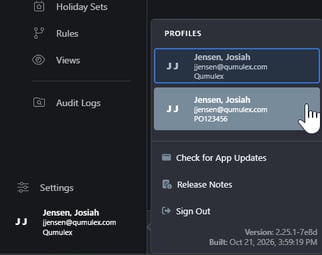
Step 1: Create your Offline Password
This is done per user, and only for users at the Customer level or below (see Who can create an Offline Password? above). If you haven’t created one yet, you’ll see an Action Required icon next to Settings.

- Click Settings, then select Offline Access
- Click Create Password. This takes you to the password section at the bottom of the page.

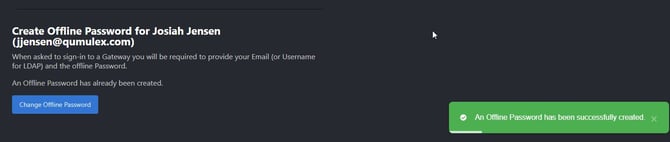
- Enter and confirm your Offline Password, then click Create Offline Password

Be sure to remember this password. It cannot be reset while the Gateway has no internet connection. While the system is online, you can change it from the same page.
Before Step 2: Set a DHCP reservation or static IP for the Gateway. The DNS and hosts entries point to the Gateway’s IP address, so if it changes, offline access will stop working. See: https://www.qumulex.com/kb/qxgateway-static-ip
Step 2: Get the Gateway DNS list
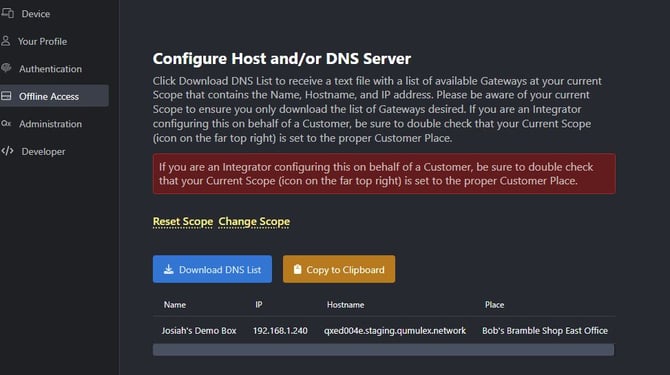
- Go to Settings › Offline Access and scroll to Configure Host and/or DNS Server
- Confirm your Scope is set to the correct customer or site. Use Reset Scope or Change Scope if needed. This matters most if you’re an Integrator configuring on behalf of a customer, or if there’s more than one Gateway at the location. See: https://www.qumulex.com/kb/setting-your-scope
- Click Download DNS List, or Copy to Clipboard, to get the Name, IP and Hostname of each Gateway at your current Scope. The Hostname (ex. qx750010.qumulex.io) is the address you’ll use to reach the Gateway when offline.
- If you see “No data for table”, your current Scope doesn’t include a Gateway. Adjust your Scope, or contact your system administrator.
Step 3: Configure DNS or hosts files
Choose one of the following:
- Local DNS server (preferred): have the site’s IT team add each Hostname and IP from the list to the local DNS server. This works for every computer on the network.
- Hosts file (per computer): add the entries to the hosts file on each Windows or Mac computer that needs offline access. See: https://www.qumulex.com/kb/modify-your-localhosts-for-offline-mode
Logging in during an outage
- From a computer on the same local network as the Gateway, open a browser and go to the Gateway’s Hostname shown in the DNS list (ex. https://qx750010.qumulex.io)
- Sign in with your Passkey, or with your email (or username for LDAP) and your Offline Password
Testing Offline Mode
You can test the offline login while the Gateway is still online. Once Steps 1–3 are complete, go to the Gateway’s Hostname (ex. https://qx750010.qumulex.io) from a computer on the local network and sign in with your Passkey or Offline Password. If the page loads and you can sign in, your DNS or hosts setup and your password are working.
To fully confirm it works during an actual outage, the Gateway has to be offline. If you want to run this test, plan it with the site and disconnect the site’s internet connection temporarily. Keep the Gateway connected to the local network so the computers can still reach it.
Related articles
- How do passkeys work in QxControl: https://www.qumulex.com/kb/how-do-passkeys-work-in-qxcontrol
- Modify your localhosts for Offline Mode: https://www.qumulex.com/kb/modify-your-localhosts-for-offline-mode
- Gateway IP Settings: https://www.qumulex.com/kb/qxgateway-static-ip