![qumulex_logo_full_color.svg]](https://www.qumulex.com/hubfs/qumulex_logo_full_color.svg)
QxControl Setup Guide
i-PRO Camera-to-Cloud
NOTE: Before Proceeding ensure the X-Series camera for the install is using the CV52 chipset which is a requirement for the IPro and Qumulex Application.
Knowledge Base Article Link:
What iPro cameras work with Qumulex Camera to Cloud?
QxControl Camera-to-cloud lets users connect a capable camera directly to the Qumulex cloud environment without the need for a gateway device, simplifying the cloud-connected video surveillance solution. i-PRO X-series cameras have the capability to host the QxControl on-premises agent, while simultaneously running the AI analytics software that makes QxControl and i-PRO such a powerful surveillance solution.
Prerequisites
- i-PRO X-series camera updated to firmware version 3.60 or greater
- SD Card with at least 32GB storage
- Ongoing access by the camera to the internet
- Access as an integrator to the QxControl cloud platform and the Qumulex Partner Portal
- Setup as an Authorized Reseller with Qumulex, contact sales@qumulex.com
QxControl Configuration
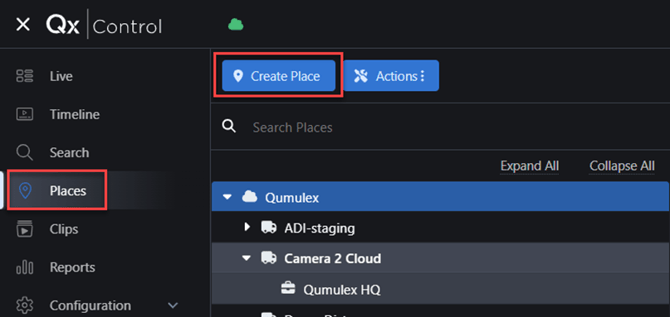
In QxControl, identify (or create) a place of type “Customer” or “Site” in the Places hierarchy for the camera to be logically assigned. This will be used at the end of the camera setup process.
Camera Configuration
- Browse to your camera
- Typically the camera will come from the factory configured with DHCP to dynamically receive an IP address from your router. You will have to determine the camera’s IP address to access the camera’s web interface to perform the connection.
- If you do not know the IP address, you can do an `arp -a` scan from a computer on the same LAN and match the camera’s MAC address (which is shown on a sticker on the camera) to it’s IP address.
- Update Firmware
- Update the firmware to version >= 3.60. The firmware can be found on the IPRO website (ipro.com)
- On the camera, navigate to Support -> Upgrade Camera and follow the camera’s instructions
- Set Up SD Card
- Remove power from your camera
- Insert an SD card that is at least 32 GB.
- Restore power and wait for the camera to reboot
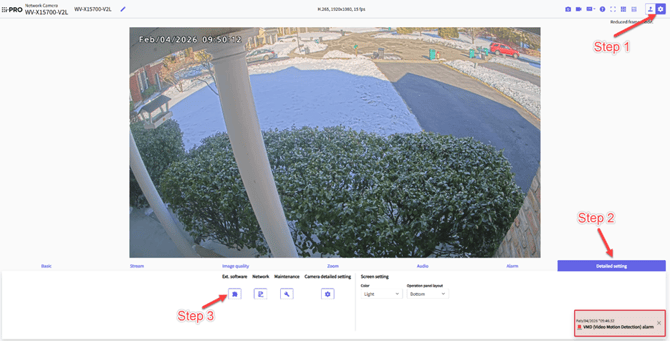
- Navigate to the “Camera detailed setting” menu
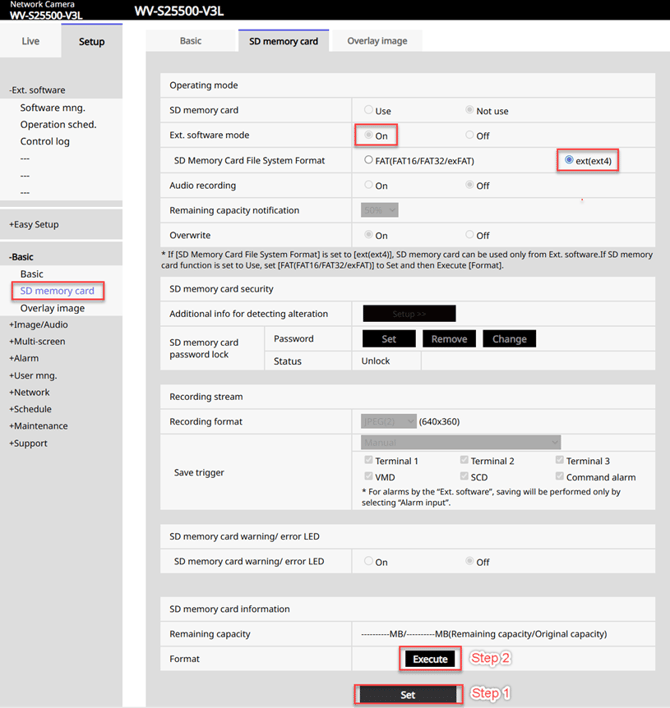
- Go to "Basic -> SD Card"
- Set the Ext software mode to “on”
- Set the SD Memory Card File System Format to "ext4"
- Press “Set” at the bottom of the page and confirm pin the popup that the card is set for Ext4
- Press "Execute" at the bottom to format the card and confirm in the popup that the format is set to Ext4
-
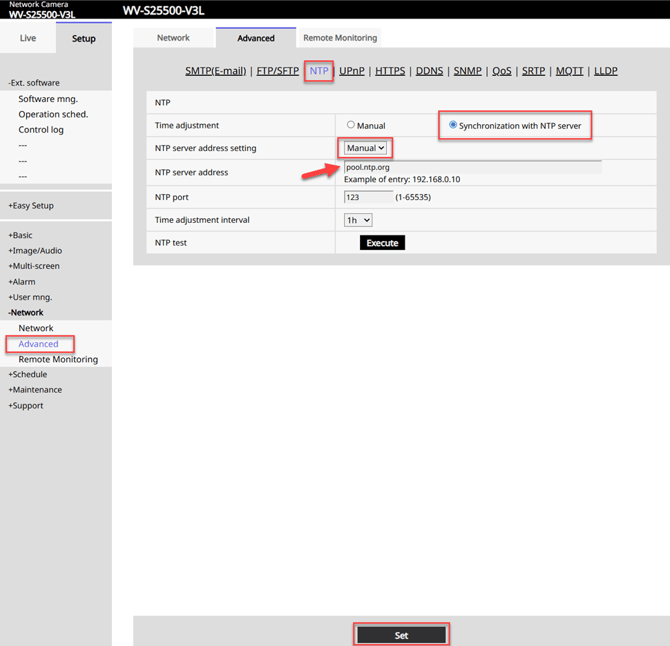
- Go to Network -> Advanced -> NTP
- Set to manual and use (ntp.org)
- Press “Set” at the bottom of the page
-
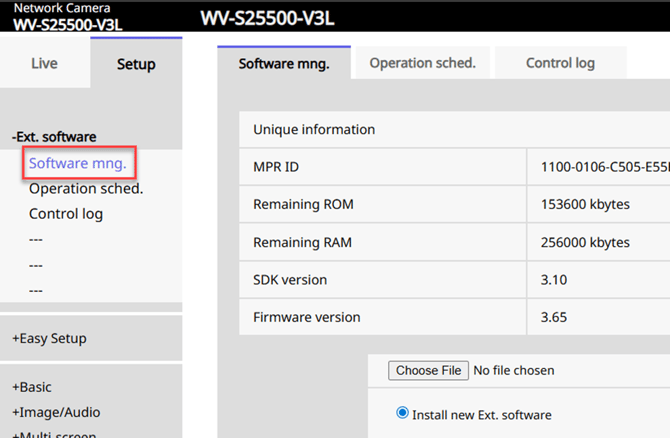
- Navigate to Ext. Software -> Software mng.
- Uninstall any unused analytic packages.
- QxControl interoperates with i-PRO AI analytics such as AI-VMD, AI People Detection, AI Vehicle detection.
-
- The Docker Extension can be found in our Partner Portal at https://portal.qumulex.io/#/documents
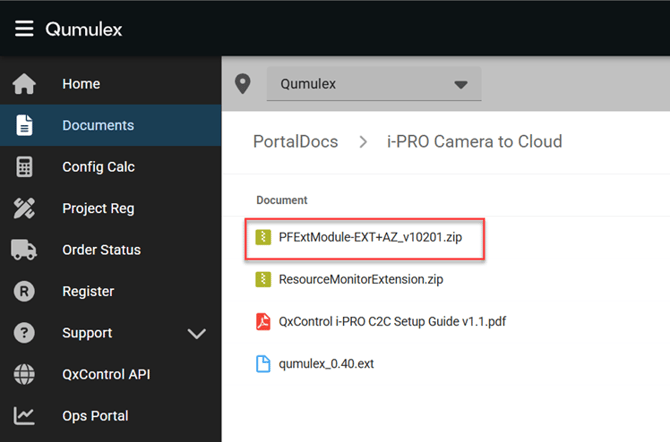
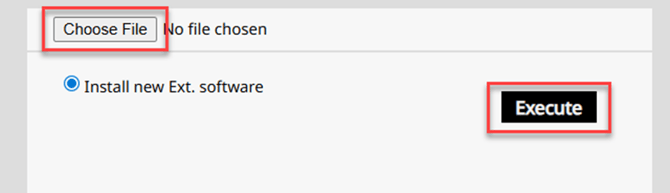
c. Browse to the unzipped extension and install
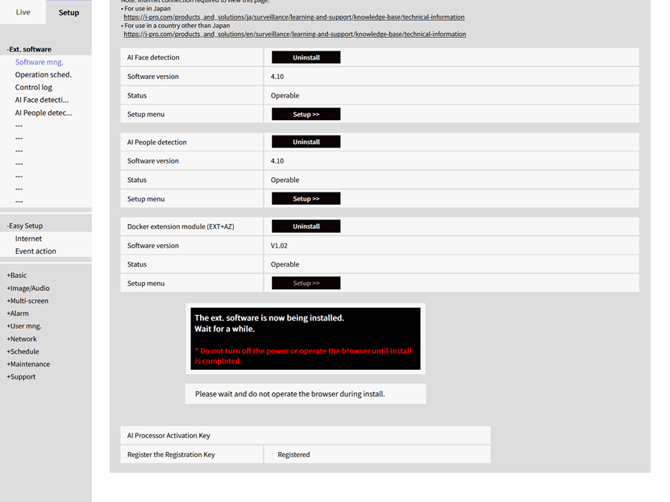
- This may take several minutes to install
- Install QxControl Application
- The QxControl application can also be found in Partner Portal at https://portal.qumulex.io/#/documents
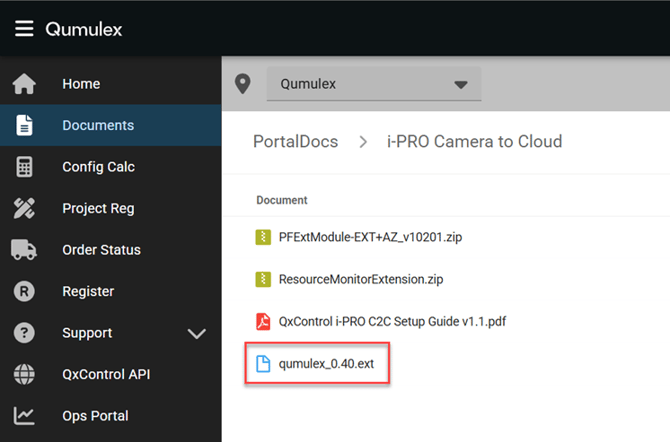
- Download and unzip the application
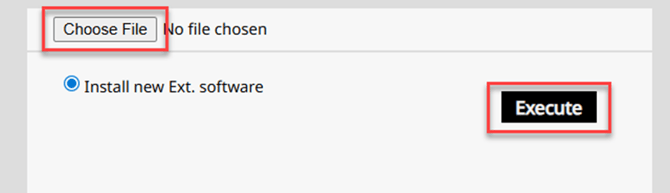
- Browse to the unzipped application and install
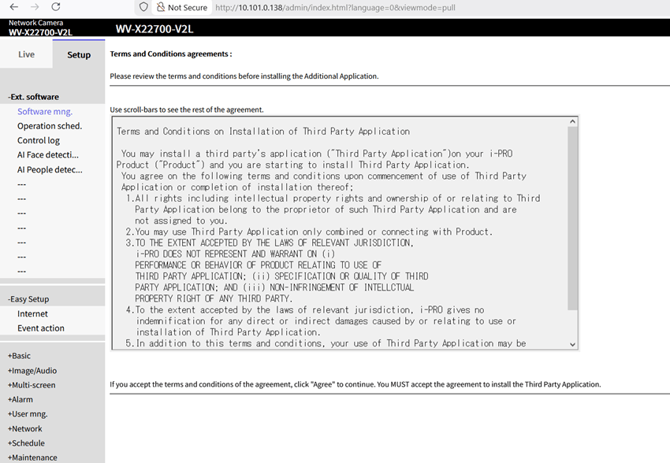
- Accept the i-PRO terms agreement
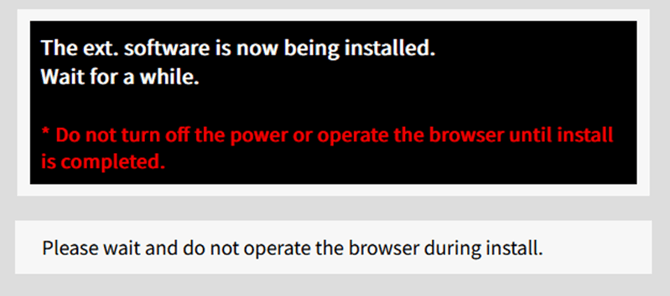
- You will again see the installing notification. This may take several minutes
- Upon completion of the installation, you will be able to set up the Qumulex connection
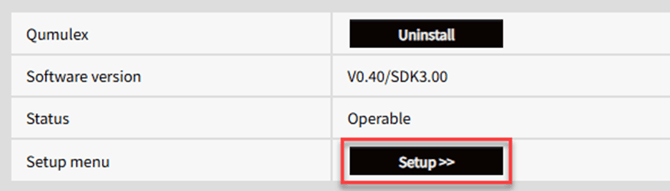
- A browser pop-up will be presented. Press “Continue Setup” button
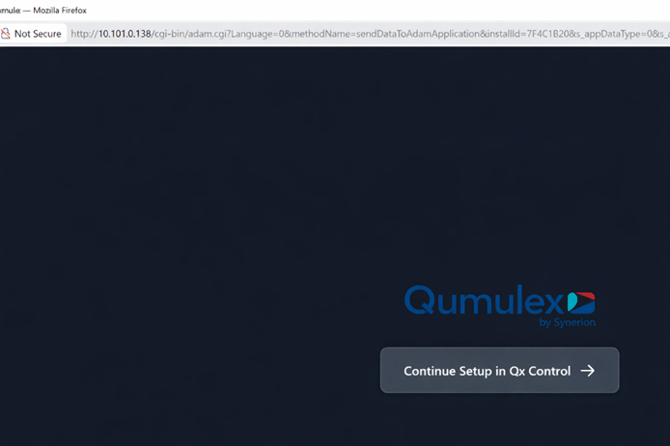
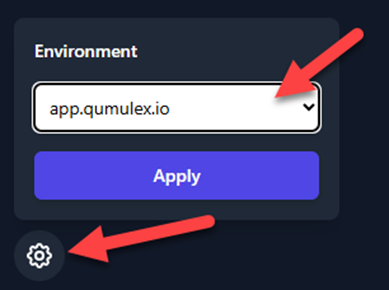
- If you do not see the “Continue Setup” button, choose the “app.qumulex.io” environment from the settings dropdown in the lower left.
- You will be taken in to the QxControl software where you can change the Camera name and the Place within the QxControl hierarchy where the camera is to be located
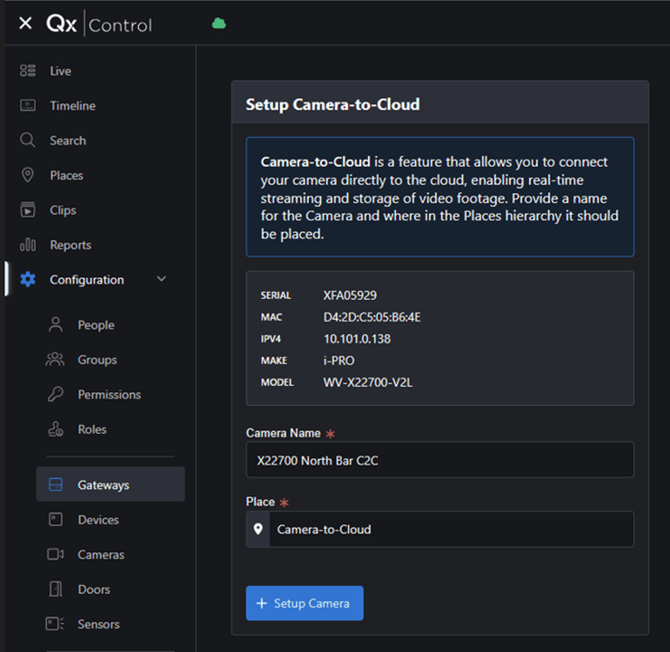
- Pressing the “Setup” button will connect the Qumulex cloud to the camera. Upon completion, you will be taken to the gateway page in QxControl.
- At this point, the camera is operable and setup is complete.
Operation
Your camera-to-cloud gateway operates identically to a server-based gateway, with the exception that you may not add additional devices to the camera-to-cloud gateway.